Meet The QuickStudy Learning Environment
Watch our 2-minute walkthrough to see exactly how the QLE works
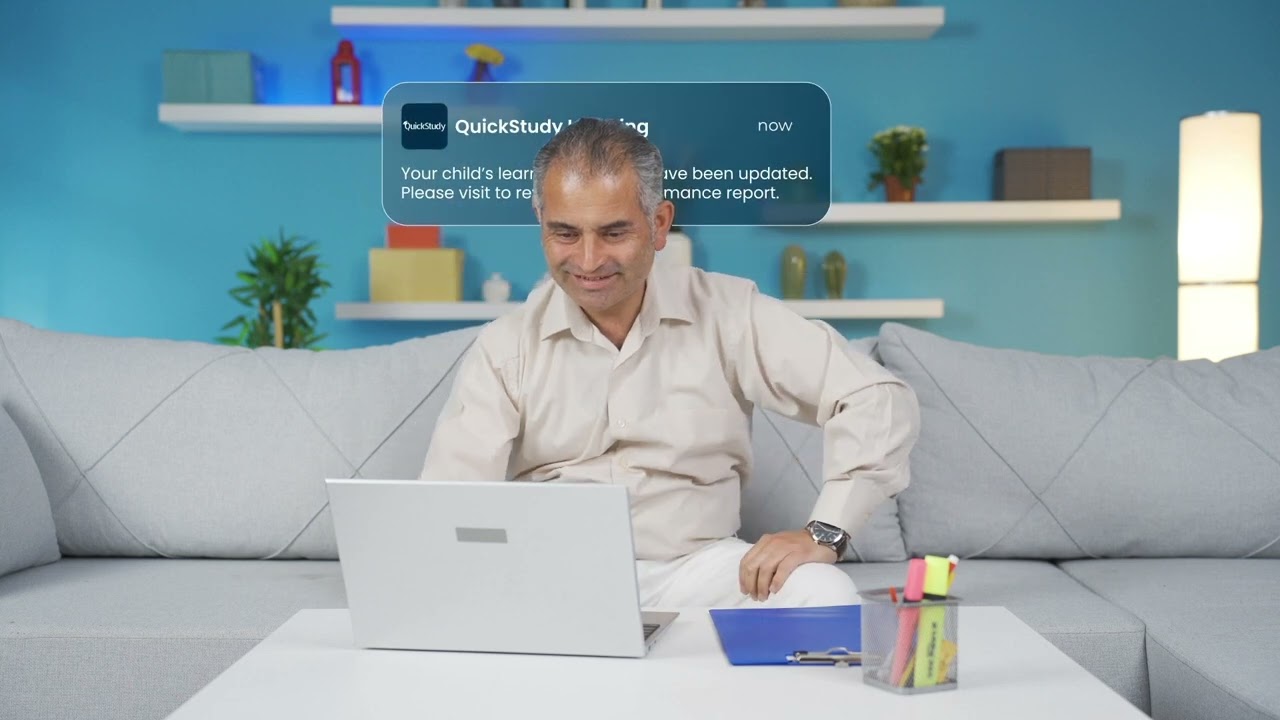
Everything Your Child Needs to Succeed
The QLE is not just a portal — it's a complete academic support system built around your child.
Session Library
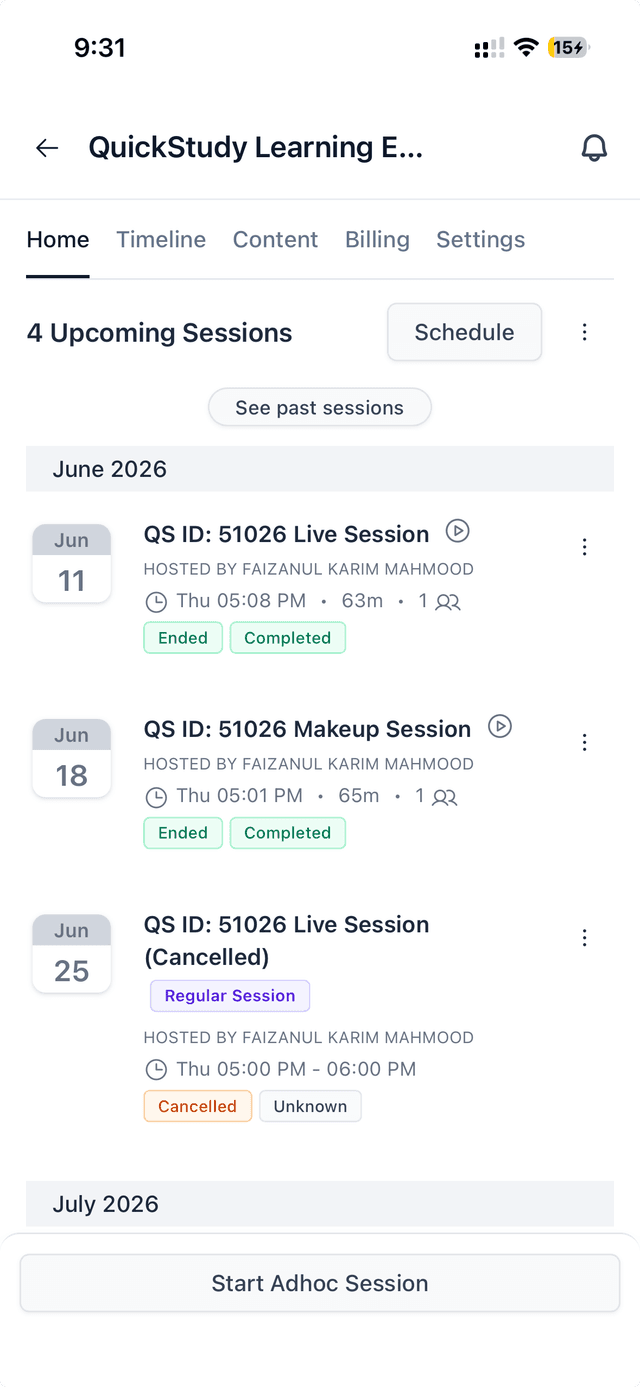
Every lesson is recorded and accessible 24/7 on any device — no session is ever lost.
- Rewatch difficult explanations
- Revise before exams
- Parents can view every session
AI Lesson Summaries
After each session, AI instantly generates strengths, knowledge gaps, and next steps.
- Post-lesson insights within minutes
- Knowledge gaps clearly identified
- Tutor-verified recommendations
Tutor Chat
Tutor, student, parent, and admin — all connected in one shared space between sessions.
- Tutor ↔ Student messaging
- Tutor Parent messaging
- Chat with Admin
Parent Dashboard
A dedicated portal keeping parents fully informed and in control at all times.
- Attendance & lesson history
- Fees & easy payment
- All children in one place
Live Whiteboard
An interactive shared canvas for visual, collaborative problem solving in real time.
- Real-time annotation tools
- Collaborative problem solving
- Session diagrams saved automatically
AI Revision Tools
AI creates quizzes, flashcards, and notes directly from every lesson transcript.
- Smart quizzes generated instantly
- Lesson-specific flashcards
- Exam-style practice questions
Learning That Goes
Wherever You Do
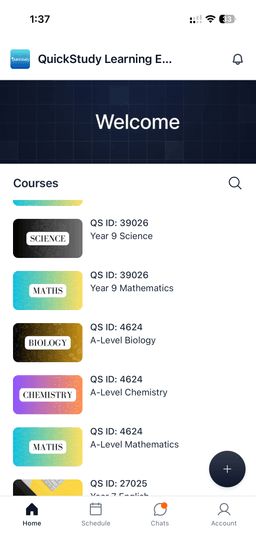
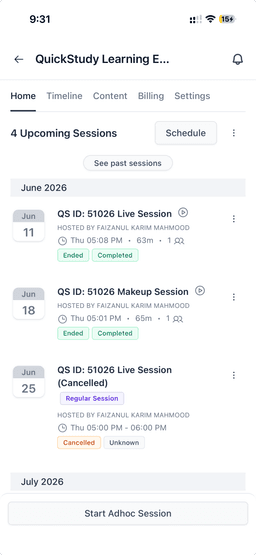
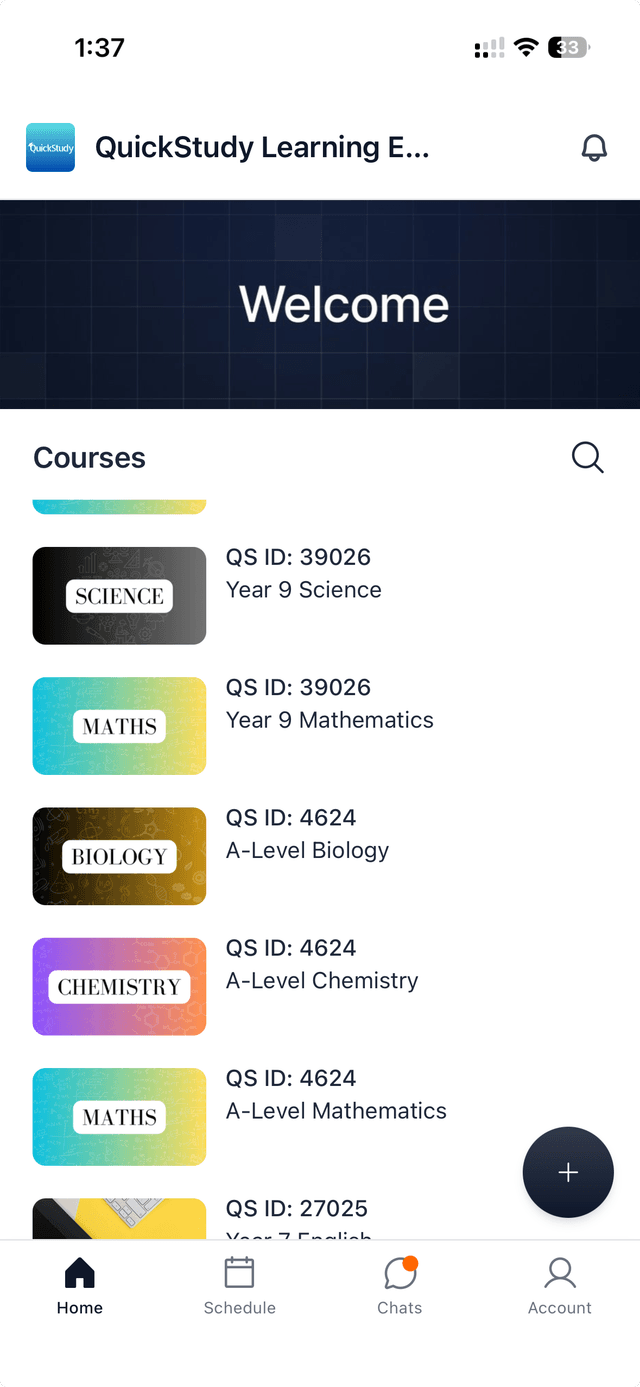
The QLE is fully optimised for mobile and tablet. Students can attend live sessions, rewatch lessons, and message their tutor — all from their phone.
- Join live classes from anywhere — phone or tablet
- Watch recorded sessions on the go
- Message your tutor between sessions
- Track progress and view reports anytime